New IT for a dental practice: What a complete overhaul really costs in time
Five treatment rooms, new server, new network, new data backup. The hardware was up and running in a few days. The work was in the transitions.
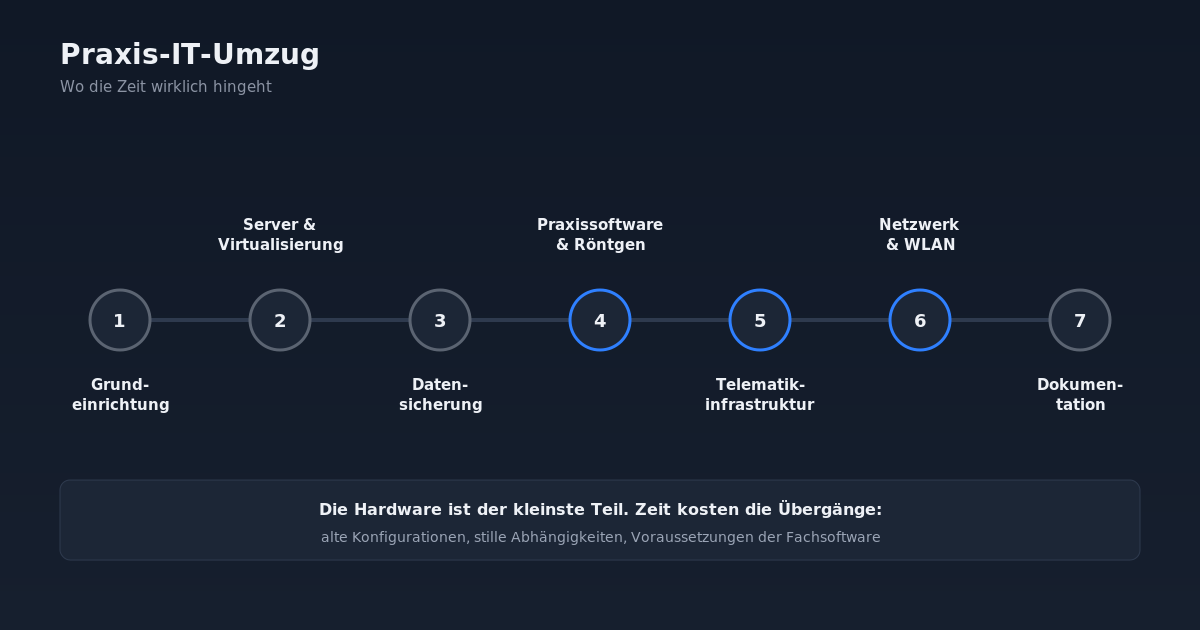
A dental practice with five treatment rooms, reception, two office workstations and digital X-ray got a completely new IT setup: new workstation computers, a new server with virtualisation, a new network with fibre backbone and new data backup. The hardware was cabled up in just a few days. The actual work was, as always, in the details afterwards.
This review sums up where the time goes in such a project and what pitfalls should be planned for. Almost everything was done via remote support.
1. Basic setup: boring, but crucial
Every new computer needs the same basics: Windows initialisation, local accounts for administration and practice operation, power-saving mode off, automatically connected network shares, current updates. It is routine, but with ten devices it adds up.
Two points that we later retrofitted across the board and would now plan from the start:
- Fixed IPv4 addresses in the operating system, not just as DHCP reservation in the router, and IPv6 off where the practice management software does not need it. This makes the network predictable and avoids surprises when the router restarts.
- Turn off power saving completely, including standby and network adapter power management. A front-desk PC that briefly goes to sleep causes connection interruptions in the practice management software that look like a server problem (separate post).
2. Server and virtualisation
The new server is a virtualisation host, on which the actual practice server runs as a virtual machine. It is connected at 10 Gbit/s via fibre. We migrated the data from the old server using our own copy script: parallel copying, logging, and above all the ability to resume an interrupted run without re-copying everything.
Later, two SSDs were added, combined as a storage pool, and the server VM was moved to the faster storage whilst running. Out-of-Band Management of the server (iLO) was set up and documented. This allows the server to be reached even if the operating system no longer starts.
3. Data backup that you can actually restore
Virtual machines are backed up to a NAS. The real test of a backup is recovery, and it came sooner than planned: a VM had to be restored from backup to the host (detailed case study). There was a typical hurdle: because of the Secure Boot setting, the VM would not start after restoration. Once you have seen that, you plan it in the next time.
We also migrated user data from old workstations (desktop, documents, browser bookmarks) from backups to the new computers.
4. Practice management software and X-ray: the most time-consuming errors
Most analysis time went into three areas:
- An X-ray plugin refused to install, the installer exited with a generic MSI error. The cause was a missing, outdated system component (MSXML 4.0) that the installer silently requires. We found it by capturing all file and registry accesses during installation (separate post).
- An account was repeatedly locked on the server. The cause was old stored login credentials on a workstation that regularly knocked in the background with the wrong password (related post).
- 3D X-ray images loaded extremely slowly on one workstation. Here we measured, narrowed down and handed the vendor a complete case description with system data, because not every cause lies in our own infrastructure.
5. Telematics infrastructure
Moving the front-desk PC affects a practice's telematics infrastructure: card terminals, connector, KIM. The migration of the telematics infrastructure connection was performed by an external service provider via remote session. We recorded the session frame by frame on both computers so every setting can be traced later. After that, we had to reconfigure the KIM client module on the new PC, including conditional DNS forwarding for .telematik in the router (separate post).
6. Network and Wi-Fi
The network is separated into VLANs: management, practice network, guest. Two pitfalls emerged:
- A removed network card left a "phantom reservation" in the router that blocked a needed fixed IP address.
- Two access points delivered the same WLAN to different VLANs because their switch ports had different native VLANs. A computer with a fixed IP lost the connection every time it roamed between the access points (separate post).
7. Documentation
At the end comes technical documentation: an infrastructure document with network diagram, IP plan and device inventory, one document per software, and one incident report per problem with symptom, analysis, cause, solution and prevention. Access credentials are kept separately in a confidential document.
It takes time, but it pays off with the first follow-up problem. Anyone who knows why a setting is the way it is does not accidentally change it back.
Conclusion
Hardware is the smallest part of a practice IT migration. Time is consumed in the transitions: old configurations that are silently carried over, components that only "happened" to work, and professional software whose requirements only become visible when it fails. Allow time for this, and insist on documentation that is more than a password list.