"Connection lost to the server": When the front-desk PC simply goes to sleep
A new front-desk PC regularly fell out of the database connection to the practice server. The cause was not in the network, but in Windows power settings.
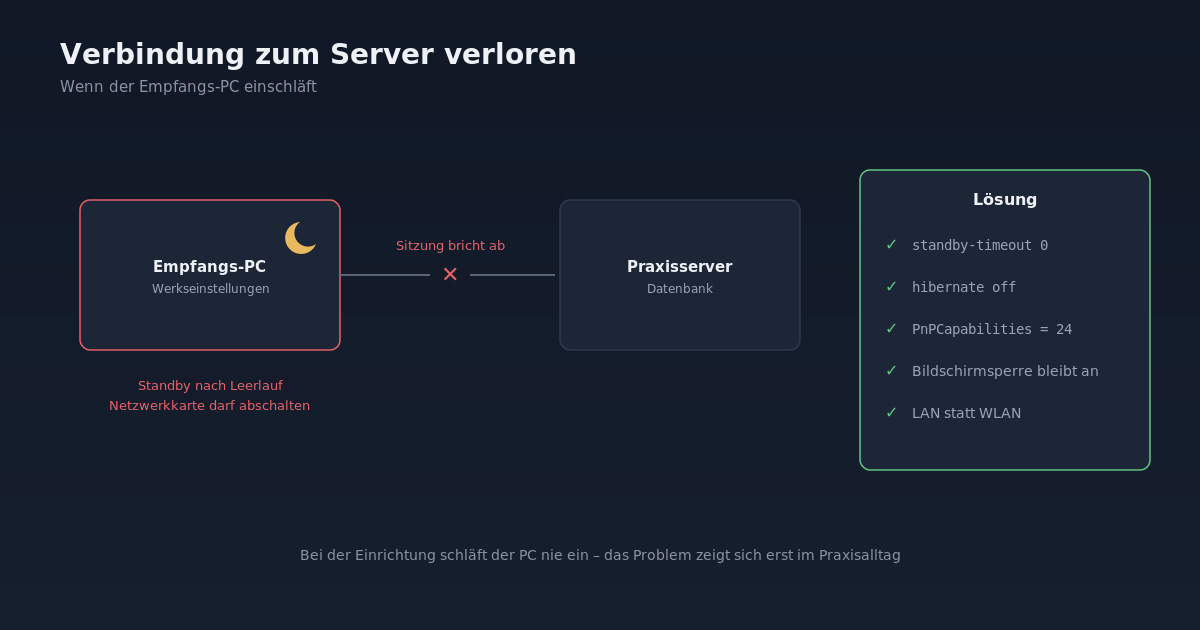
Shortly after replacing the front-desk PC at a dental practice, the practice management software repeatedly reported that the connection to the server had been interrupted. The other workstations ran without problems, as did the server. Only the new computer at reception regularly fell out of the database connection.
When such messages occur, one first thinks of network cables, switches or servers. But the cause lay in the computer itself: in Windows power settings.
The Diagnosis
The computer was reachable via remote support, the network cable was in order, the IP address was fixed. The pattern was striking: the interruptions came after periods when no one was working at reception — for example over lunch time.
A look at the power settings confirmed the suspicion. The new computer had the factory settings:
- Standby after a certain period of idle time (on mains power).
- "Computer can turn off this device to save power" enabled for the network adapter.
For a home office PC, that makes sense. For a workstation that maintains a permanent database connection to the practice server, it is fatal. When the computer goes to sleep or Windows briefly turns off the network adapter, the session to the server is interrupted. The practice management software only notices when the next access attempt is made and then reports a connection error.
The Solution
Three settings that we routinely set on practice computers, each as Administrator in the command prompt:
1. Turn off Standby and Hibernate:
powercfg /change standby-timeout-ac 0
powercfg /change standby-timeout-dc 0
powercfg /change hibernate-timeout-ac 0
powercfg /change hibernate-timeout-dc 0
powercfg /hibernate off
The screen may continue to turn off after some time — that does not disrupt the connection and is even desirable at reception for data protection reasons.
2. Turn off network adapter power management.
This can be done in Device Manager via the properties of the network adapter, "Power Management" tab. For multiple computers or via remote support, the Registry is faster. The value PnPCapabilities = 24 in the driver key of the network adapter corresponds to the unchecked box "Computer can turn off this device":
$guid = (Get-NetAdapter -Name 'Ethernet').InterfaceGuid
$key  = Get-ChildItem 'HKLM:\SYSTEM\CurrentControlSet\Control\Class\{4d36e972-e325-11ce-bfc1-08002be10318}' -ErrorAction SilentlyContinue |
        Where-Object { (Get-ItemProperty $_.PSPath).NetCfgInstanceId -eq $guid }
Set-ItemProperty -Path $key.PSPath -Name PnPCapabilities -Value 24 -Type DWord
The setting takes effect after the next restart. One small caveat: the obvious PowerShell cmdlet Set-NetAdapterPowerManagement does not know this option. And the often-cited WMI approach via MSPower_DeviceEnable does not work with every driver.
3. Check:
powercfg /a
powercfg /query SCHEME_CURRENT SUB_SLEEP
powercfg /a should report that hibernation is not enabled, and the standby time should be 0.
Why this happens so often with new computers
When setting up new workstations, one thinks about software, printers, network drives and card terminals. Power settings often remain at factory defaults because the computer is constantly in use during setup and never goes to sleep. The problem only becomes apparent in practice when reception has an hour or two of quiet time.
Our recommendation for practice computers with database connection to the server:
- Standby and hibernation off, screen lock-out and screen lock on.
- Network adapter power management off.
- Preferably LAN instead of Wi-Fi, and if both are present, disable Wi-Fi so Windows does not switch between connections.
- Include these settings in the checklist for new workstations, not just set them when there is a problem.