Two access points, two networks: Why a PC lost connection during roaming
Full bars, "connected" — yet no server every few minutes. Two causes lay on top of each other: one visible in the radio, one invisible in the VLAN.
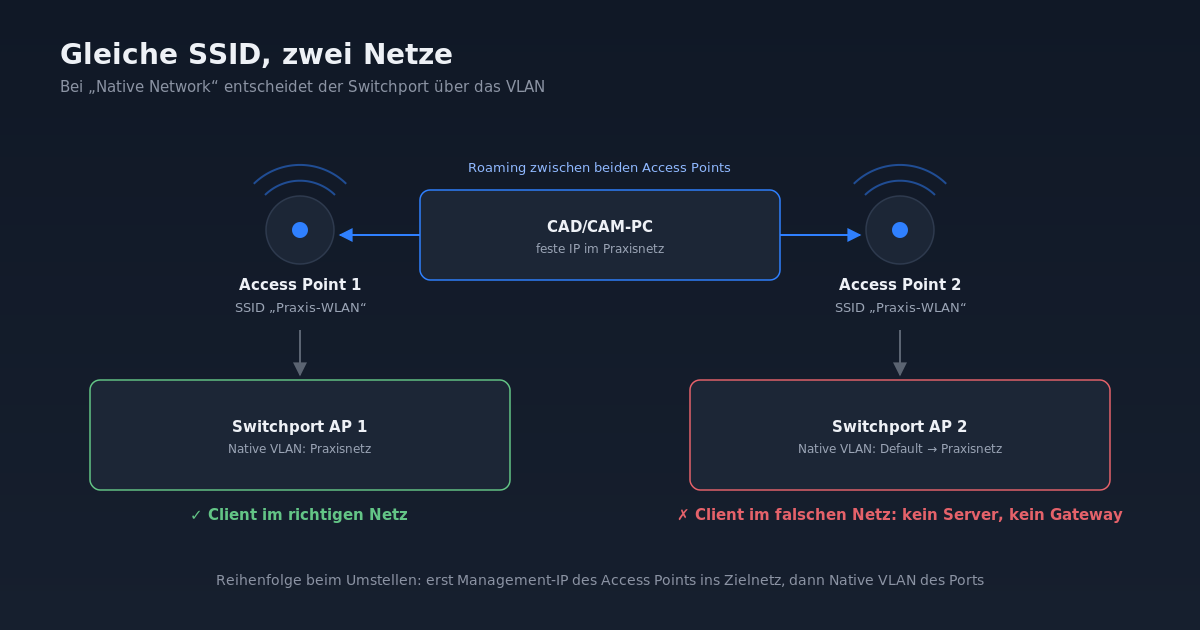
A CAD/CAM computer in a dental practice repeatedly lost connection to the server. The Wi-Fi symbol showed full bars, the network was "connected" according to Windows, yet access to shares was interrupted every few minutes. In the controller interface of the network, connections lasted three to seven seconds and showed the message "Unable to roam".
The case is instructive because it layers two causes on top of each other: a visible radio cause and an invisible network cause. Anyone who only fixes the first one wonders why the problem remains.
The obvious cause: radio
The computer is a mini PC with a built-in Wi-Fi card to WiFi 4 standard, so 2.4 GHz only. It stood where two access points came in at nearly equal signal strength, both at −65 dBm. The 2.4 GHz channel 6 was heavily congested, packet retransmission was around ten percent.
The result is classic roaming flapping: the client jumps between the two access points, and with each switch there is a brief interruption.
The first measures were obvious:
- Clean up channel plan. The two access points were given non-overlapping channels 1 and 11 in the 2.4 GHz band. Channel 6 remained clear.
- Switch to 5 GHz. A USB Wi-Fi adapter with dual band (AC1300) replaced the built-in card. The 5 GHz band was clearly less congested according to channel scan.
After that it improved, but was not good. The computer still occasionally lost connection, particularly when connected to the second access point.
The hidden cause: the VLAN
The crucial clue came from the client list. Another Wi-Fi device, a streaming speaker, had an address from the practice network at the first access point, but an address from a completely different address range at the second access point. Same WLAN, same name, two different networks.
The explanation lies in an inconspicuous setting. The WLANs were configured in the controller as "Native Network". This means: the access point sends WLAN traffic untagged on its uplink. Which VLAN it lands in is therefore determined not by the WLAN configuration, but by the native VLAN of the switch port on which the access point is connected.
- Access Point 1 was connected to a port with native VLAN "practice network".
- Access Point 2 was connected to a port with native VLAN "Default", the management network of the network devices.
For devices with DHCP, this was hardly noticeable: after switching, they fetch a new address and internet continues to work. But the CAD/CAM computer had a fixed IP address in the practice network. As soon as it switched to the second access point, it found itself with this address in the wrong network. No gateway, no server, no connection, until it roamed back again.
The trap in reconfiguring
The solution sounds simple: change the native VLAN of the switch port for access point 2 to the practice network. That is exactly what we did first, and promptly the access point disappeared from the controller.
The reason: The access point's management also runs over the native VLAN. It had a DHCP address from the default network. After the port change, it had this address in the practice network and could no longer reach the controller. We immediately reverted the change.
The correct sequence:
- First place the management IP of the access point in the target network. In the controller, assign a static address from the practice network, with gateway and DNS of the practice network, then save.
- Then change the native VLAN of the switch port. The tagged VLANs for the guest WLAN remain permitted.
- Verify. Access point online under the new address, all WLAN clients with addresses from the practice network.
The access point continued running without a restart. It was back in the controller within seconds.
One detail about the fixed management address: it was in the DHCP range. This is only harmless if the DHCP server checks before allocation whether the address already responds ("Ping Conflict Detection"). In this network, the option was active. Otherwise we would have had to restrict the DHCP range.
What to take from this
- Same SSID does not mean the same network. With "Native Network", the switch port determines the VLAN. Anyone moving access points or reconfiguring ports changes the WLAN network.
- Fixed IP addresses make misconfigurations visible. Devices with DHCP hide the problem because they simply fetch a new address.
- The client list is the best diagnostic tool. A device with two different address ranges depending on access point is definitive proof.
- For VLAN changes on network devices, move management first, then the port.
- Stationary workstations belong on cable. Wi-Fi is the second-best solution for a CAD/CAM computer with server access, even though it is now stable.