When a 3D Plugin Refuses to Install: Tracing Error 1603 to Its Root Cause
A healthcare IT case study showing why generic error codes require deeper investigation—and how system-level tracing finds what generic logs miss.
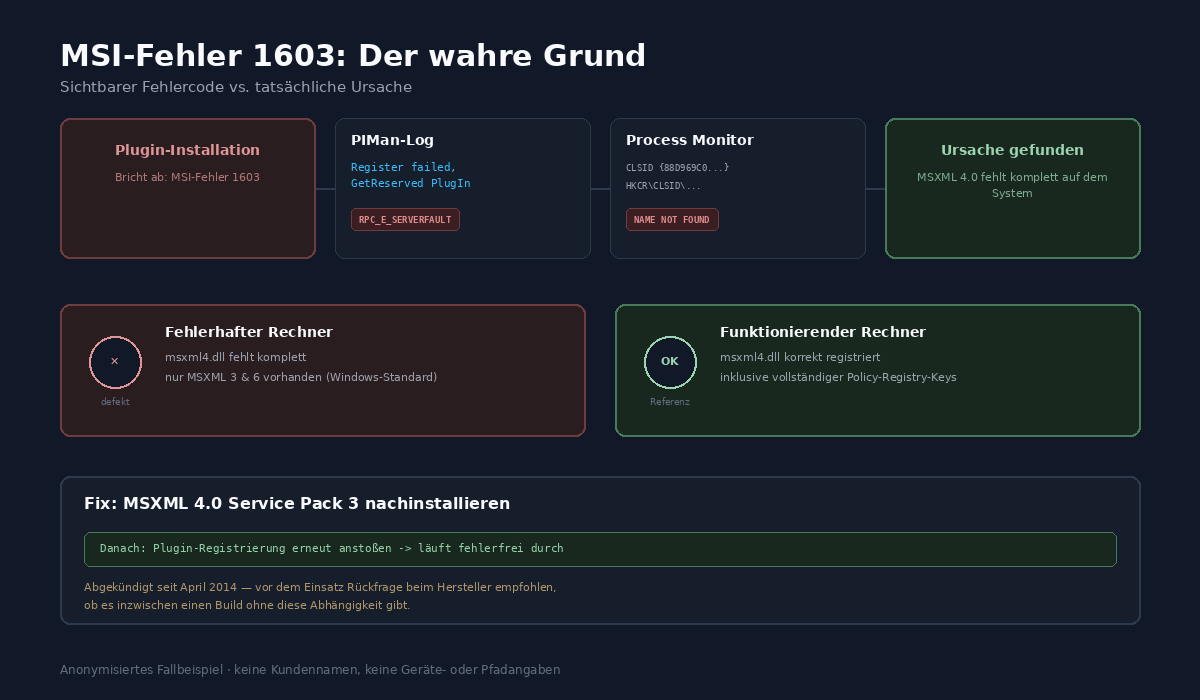
A healthcare customer sought support for a stubborn installation problem: A 3D extension module for the dental imaging software Sidexis 4 absolutely refused to install on a newly set up Windows 11 computer. The Windows Installer failed each time with the notorious error code 1603—a catch-all message that, on its own, reveals almost nothing about the actual root cause. This case demonstrates why you shouldn't stop asking questions at "1603".
The First Look: Only the Surface of the Error
A check of the event log and the application's own log files from the installation source revealed the first concrete error message:
[ERROR] PIMan: Register failed, GetReserved PlugIn
        ...\Plugin\XG3D.exe, sc=-2147417851 !
[ERROR] PIMan: Register failed, file
        ...\Plugin\XG3D.exe
        doesn't contain any valid plugin info !
[ERROR] PIMan: PI registration failed
        ...\Plugin\XG3D.exe !
The pattern behind it: The installer package first successfully copies the program files, but then calls the imaging software's own plugin manager to register the new module as an extension. Precisely this registration step fails—the plugin manager doesn't receive usable plugin information from the newly installed program. The installer interprets this as a failed action and exits with 1603. So error code 1603 is just the wrapper; the actual error lies one level deeper, in the communication between two components.
The status code sc=-2147417851 translates to RPC_E_SERVERFAULT—an internal COM server crashed or didn't respond properly to the request. Notably: another extension module from the same software had shown exactly the same registration problem shortly before. Two different plugins, the same error—a clear indicator that it wasn't a single defective installation package, but something more fundamental in the environment.
The Second Look: System-Level Tracing
Verbose logging of the installer didn't help decisively, since the actual error lies outside the MSI process itself. The next step was therefore system-level tracing (Process Monitor) directly during the installation attempt, filtered to the process of the new plugin. From several thousand recorded file system and registry accesses, the critical lines could be isolated:
...  ProgID SIDEXISNG.OptionsManager  -> CLSID found
...  Thread Create, OLE/RPC-Marshalling for IDispatch           OK
...  own CLSID ...\LocalServer32                                OK
...  HKCR\WOW6432Node\CLSID\{88D969C0-...}   NAME NOT FOUND
...  HKCR\CLSID\{88D969C0-...}               NAME NOT FOUND
...  QueryDirectory  ...\Plugin\XGDataConfig.xml    NO SUCH FILE
...  Plugin initializing… / Version 1.6.0.56
...  GetReserved called…
...  Process Exit, Exit Status 0
The CLSID {88D969C0-F192-11D4-A65F-0040963251E5} stands for Msxml2.DOMDocument.4.0—a component from MSXML 4.0, the fourth, long-obsolete major release of Microsoft's XML library. This class is searched in both registry views, the 32-bit and 64-bit perspectives, and found in neither. Immediately after, the plugin can no longer find its own configuration file, logs the entry into its initialization routine—and then shuts down cleanly, with exit status 0. No crash, no crash dump, just a quiet, controlled withdrawal because a prerequisite was missing.
The Root Cause: A Component Windows Never Included
A comparison with a known working environment of the same software confirmed the suspicion completely: There, msxml4.dll was present in the system directory, correctly registered, and with complete registry entries including policy keys. On the new computer, the file was missing entirely—only the far more recent MSXML versions 3 and 6 were present, which Windows includes by default.
The crucial point: MSXML 4.0 was never part of Windows. It always had to be installed separately. On older, long-standing computers, it often lingered from an earlier installation—a silent resident that no one thought about anymore. A freshly set up Windows 11 doesn't include this component, and the 3D plugin's own installation package doesn't either. A thorough search of the installation media for files related to MSXML consistently yielded no results. The plugin requires a component that it doesn't provide itself and that simply no longer exists on modern Windows installations.
The Fix—and a Compromise That Must Be Addressed Openly
The solution was fundamentally straightforward: Install MSXML 4.0 Service Pack 3 via the official installation package, then trigger the plugin's registration again. One detail here is important for anyone facing a similar problem: Simply copying the missing files from a working computer would have been the wrong approach. MSXML 4.0 needs not just the DLL itself but also correctly set registry and policy keys, which only a proper installation run reliably creates.
But honesty also demands acknowledging a compromise that shouldn't be hidden: MSXML 4.0 has been officially deprecated since April 2014 and has received no security updates since then. Anyone installing this component today is deliberately pulling a decade-old, no-longer-maintained library onto a current machine. This isn't a recommendation to make lightly—it's simply the prerequisite this particular plugin happens to have. The cleaner approach is to ask the software vendor directly whether there's now a build of the plugin that works without this outdated dependency. With the trace data as evidence, such a request can be made precisely and transparently, rather than just reporting "it won't install".
After reinstalling, the plugin's registration ran through without error on the next attempt. Since the same computer type was deployed multiple times in practice, before rolling out fleet-wide, each affected workstation was individually checked first to see if the same component was missing, before the reinstall was performed only where it was actually needed—rather than intervening preventively on all computers.
Takeaway
Three lessons that apply to similar installation problems:
First: A generic error code like 1603 describes that an action failed during installation, not why. The actual cause almost always lies one level deeper, in the application's own log files or—if those aren't sufficient—in system-level tracing.
Second: When the same error occurs in multiple, independent components, it points to a common, deeper-level cause—not to a single defective package. This observation saved valuable time here because it pointed the investigation in the right direction from the start.
Third: Not every missing dependency can be reinstalled without concern. When the solution is an outdated, no-longer-maintained component, the trade-off between short-term functionality and long-term risk should be discussed openly—and the question to the vendor about whether a more current solution exists should be part of every ticket.
This article describes an anonymized, real-world case study from our IT support everyday work. Specific customer names, device designations, file paths, and timestamps have been removed or generalized.