Error Diagnosis Without a Mouse: How to Troubleshoot Multiple Software Crashes via PowerShell
A managed-IT support team shares how they diagnosed repeated application crashes using command-line tools instead of clicking through Windows logs.
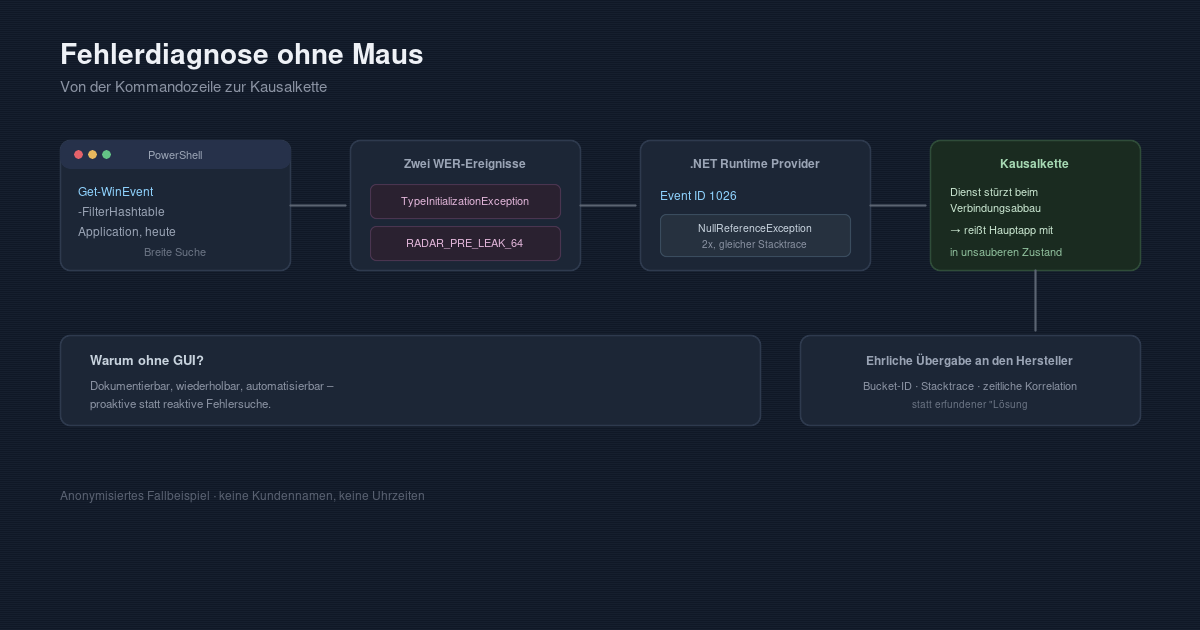
A healthcare client called with a familiar complaint: "The software keeps crashing today." The application in question was Sidexis 4, the widely-used imaging software for dental X-ray imaging, running on a workstation in their practice. The client's request was explicit: no graphical interface, no clicking through the Event Viewer—the entire diagnostic work should be done from the command line. This seemed like a good opportunity to document the complete process.
The Starting Point
Rather than clicking through the Event Viewer, we connected via remote support to an administrative terminal on the affected machine and worked directly with PowerShell. Our first step was a broad search of the Application event log for anything related to the software name:
Get-WinEvent -FilterHashtable @{LogName='Application'; StartTime=(Get-Date).Date} |
  Where-Object { $_.Message -like '*Sidexis*' -or $_.Message -like '*XG3D*' } |
  Select-Object TimeCreated, Id, LevelDisplayName, ProviderName, Message |
  Format-List
Get-WinEvent with a FilterHashtable is significantly faster than the older Get-EventLog because the filtering happens server-side in the event log index, rather than after reading all entries. For an initial overview of just one day, this approach is more than sufficient.
The Discovery
From the complete output, we could extract the core facts by using a simple findstr command to filter the relevant lines:
findstr /c:"TimeCreated" /c:"P1:" /c:"P9:" sidexis_log.txtResult: two separate Windows Error Reporting entries on the same day. First, the process sidexisxraylauncher.exe with a System.TypeInitializationException, and second, the main process Sidexis4.exe with a WER bucket named RADAR_PRE_LEAK_64.
According to .NET documentation, a TypeInitializationException is almost always a secondary error: the static constructor of a class fails, typically because a dependency is missing, a configuration file is unreadable, or something in the execution environment has changed. The actual cause almost always lies in the InnerException—a good sign to dig deeper rather than taking the error message at face value.
RADAR_PRE_LEAK_64, on the other hand, is not a classic crash code but rather a heuristic Windows bucket assigned when memory consumption is unusually high or sustained over time—regardless of the specific program. On its own, it says little about the root cause, but it does indicate that the process was consuming an abnormally large amount of memory at the time it was terminated.
A Second Look: The .NET Runtime Itself
Because an imaging program like Sidexis relies on a Windows service in the background for device communication, a second, more targeted query was warranted—this time directly against the .NET Runtime provider, which logs unhandled exceptions:
Get-WinEvent -FilterHashtable @{LogName='Application'; StartTime=(Get-Date).Date; ProviderName='.NET Runtime'} |
  Select-Object TimeCreated, Id, Message |
  Format-List
And indeed: the corresponding background service for the X-ray device interface had crashed twice that afternoon with the same NullReferenceException—in the exact same stack trace, while closing a REST connection (ResetConnectionPool → CloseIntern). Shortly after the second service crash, the main application crashed as well.
The Big Picture
Taken together, a plausible causal chain emerged: a background service for sensor communication had a problem closing connections, causing it to crash repeatedly—and dragging the main application into a corrupted state that led to its termination as well. The earlier crash of the launcher process that same day with the initialization exception fit the picture of an overall unstable interaction between the application and the device service.
The Limits of Self-Help
At this point, we deliberately conducted public research before presenting a remote diagnosis as "solved." While generic .NET error patterns like TypeInitializationException or NullReferenceException have plenty of documentation, the specific internal class names and error bucket IDs of proprietary practice software naturally do not. This is not an exception but the norm for specialized solutions in specific industries: public research provides context and perspective, but it cannot replace vendor support once we're dealing with internal implementation details.
As a result, we did not present an invented "solution" but rather an honest and precisely documented handoff to the software vendor: process and error bucket IDs, exact stack trace, temporal correlation between service and application crashes—everything a vendor support team needs to categorize the ticket without having to re-diagnose it from scratch.
Why the Command-Line Approach
Avoiding the graphical Event Viewer was not an end in itself. When you express filtering as a PowerShell command, you can document it exactly, repeat it, and automate it if needed—for example, as a recurring check that proactively alerts you to unusual crashes in the future, rather than waiting for someone at the practice to complain. That, ultimately, is the difference between reactive and proactive IT support.
This article describes an anonymized, real-world case study from our IT support practice. Specific customer names, device names, and times have been removed or generalized.