When Your Server Fails: Emergency Hardware Migration
A real-world case study on restoring a critical virtual machine from backup to new hardware without breaking network connectivity.
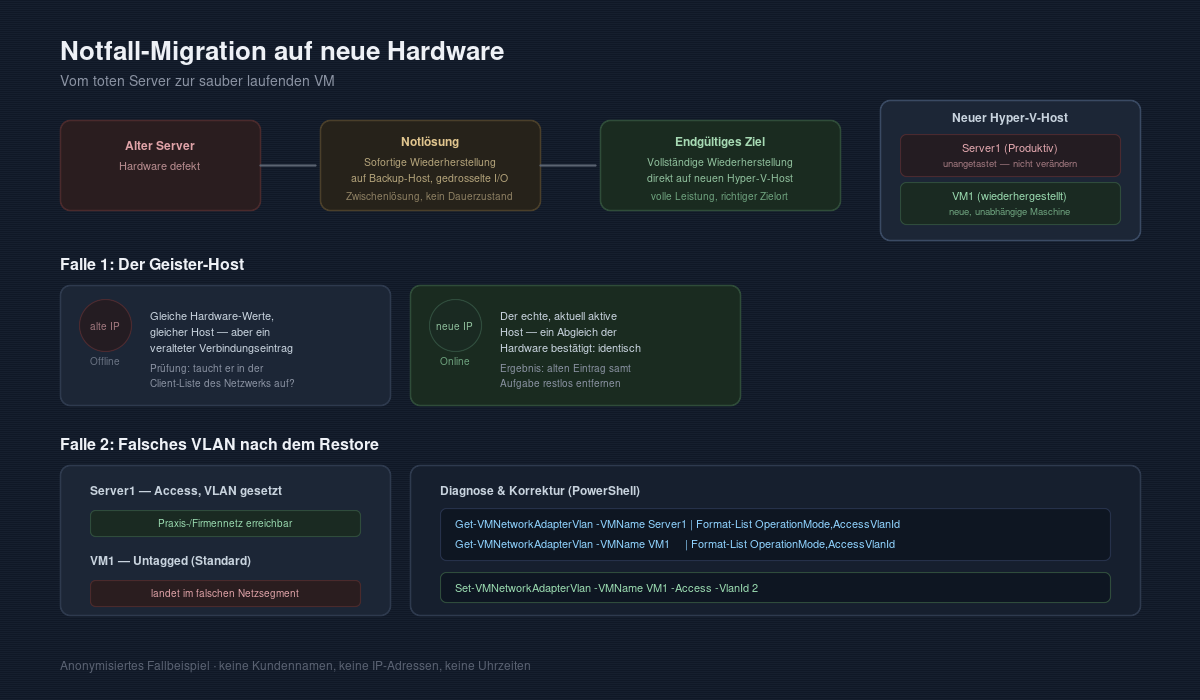
A customer called with perhaps the most dreaded sentence any IT professional can hear: "Our server won't start." The physical server—a classic Windows Hyper-V host running a single, business-critical virtual machine—had failed completely. The good news: a day-current backup existed. The bad news: the replacement host was new, untested, and the recovery had to work perfectly without breaking anything else on the network.
The Starting Point
Backup software like Active Backup for Business offers several recovery paths for exactly this scenario. Two options were available:
- Immediate recovery to the backup server's built-in virtualization host—quick to get back online, but with limited I/O performance until the machine is migrated to its permanent platform. Intended as an emergency stopgap to minimize downtime.
- Full recovery directly to a new, dedicated Hyper-V host—more involved, but from the start with full performance and in the right final location.
The first path was chosen initially to get any working system back online. That's a legitimate approach—as long as you remember it's a temporary measure. Once the actual replacement server was ready, the second, final step followed.
The Pitfall: Duplicate Objects in the UI
Before the actual migration began, something confusing appeared in the management interface: there seemed to be two independent Hyper-V hosts—one permanently offline, with exactly the same hardware specifications (same CPU core count, same memory, identical disk sizes) as the new, real server. At first glance, it looked like a second, unknown infrastructure.
But the suspicion quickly proved to be a false alarm: the supposed second host was simply an outdated connection entry with the old IP address of the same physical device, left over from an earlier network configuration. The backup software had never automatically cleaned up this connection, so it kept running as a standalone (and perpetually failing) entry in the task list.
The lesson: before dismissing an unknown second component as a "separate, independent infrastructure," it's worth comparing expected vs. actual by checking the actual active network devices—for example, through the client list of your network controller. A host that doesn't appear there is offline or no longer exists, regardless of what older notes or backup configurations suggest. After confirming this, the outdated connection and its associated (and useless) backup task were completely removed.
The Actual Migration
With a clear picture of the actual infrastructure, the full recovery began:
- Establish a new connection to the fresh Hyper-V host (WinRM was already active there—a good reminder to enable this on every new Windows Server installation).
- Select the most recent successful recovery point.
- Important: Don't select "restore to original location" if the original host is dead—that would simply send the recovery to an unreachable address. Instead, choose "restore to new location" with explicit target host, target datastore, and target network.
- Enable MAC address regeneration if the original MAC was statically tied to a DHCP reservation—otherwise, address conflicts will occur once both copies (old and new) are on the network simultaneously.
One detail easily overlooked: the same new host already ran a completely different production virtual machine for other purposes. This must not be touched under any circumstances. A recovery wizard often remembers the last selected line—a second glance at the dialog title before clicking "Next" actually prevented a misclick on the wrong machine here.
Cleanly Shutting Down the Old Copy
Once the new, full copy was running on the correct host, the previous emergency instance needed to come offline. Without guest tools installed, a clean shutdown from within the operating system wasn't possible—a forced shutdown at the hypervisor level was fine here, since the copy was going to be discarded anyway.
The Second Pitfall: Wrong VLAN
After the new virtual machine started, it did get an IP address—but from the wrong network segment. The production comparison machine on the same host was bound to the internal practice/office network via a VLAN tag ("Access" mode, specific VLAN ID); the freshly recovered machine, however, remained "untagged" and ended up in the general management network.
The diagnosis could be cleanly separated per machine:
Get-VMNetworkAdapterVlan -VMName Server1 | Format-List OperationMode,AccessVlanId
Get-VMNetworkAdapterVlan -VMName VM1     | Format-List OperationMode,AccessVlanId
The comparison showed the difference clear as day: one machine in Access mode with VLAN ID set, the other completely untagged. The fix is a single line:
Set-VMNetworkAdapterVlan -VMName VM1 -Access -VlanId 2A restore wizard reliably copies disks, memory configuration, and (when enabled) even a new MAC address—but VLAN assignments on the virtual switch are host-specific settings that don't automatically carry over from the backup. If you only check after a migration whether the machine got an IP at all, you'll easily miss that it might be the wrong IP on the wrong network.
Conclusion
Three lessons from this migration that apply to any similar case:
First: an unknown second entry in the management interface isn't automatically a second, independent infrastructure—often it's just an outdated reference to the same machine under an old address. Comparing with actual network reality brings clarity before false assumptions influence far-reaching decisions.
Second: when choosing a recovery mode, the difference between "back online quickly" and "back online correctly" matters. Both approaches have merit—but only if you're aware of which phase you're in, and the emergency workaround doesn't accidentally become permanent.
Third: network segmentation (VLANs) lives at the virtual switch level, not in the backup itself. After any hypervisor migration, it's worth explicitly comparing VLAN configuration between the new machine and a known-working comparison machine on the same host—one line of PowerShell that saves a lot of troubleshooting.
This article describes an anonymized, real-world case study from our IT support practice. Specific customer names, device designations, IP addresses, and timestamps have been removed or generalized.