Running ISDN on a Stiegeler Fiber Optic Connection
When switching to a Stiegeler fiber optic connection (FTTH), your legacy ISDN system suddenly loses connectivity. A used FRITZ!Box 7590 behind the provider's router solves it affordably — as long as you know three things first.
From a customer project using a Stiegeler fiber optic connection
The situation is nearly identical with every upgrade. The connection is migrated to fiber, the provider delivers a current FRITZ!Box, and in the office there's an ISDN telephone or small PBX system that actually still works flawlessly. The problem: the new models no longer have an S0 port. The FRITZ!Box 5690 never had one, and in the 7590 AX it was dropped in the second hardware version.
The obvious solution is a used FRITZ!Box 7590 — the model without "AX" that still has a FON S0 port. It goes behind the provider's router and handles only telephone functions. It works, but it's not plug-and-play.
The Setup
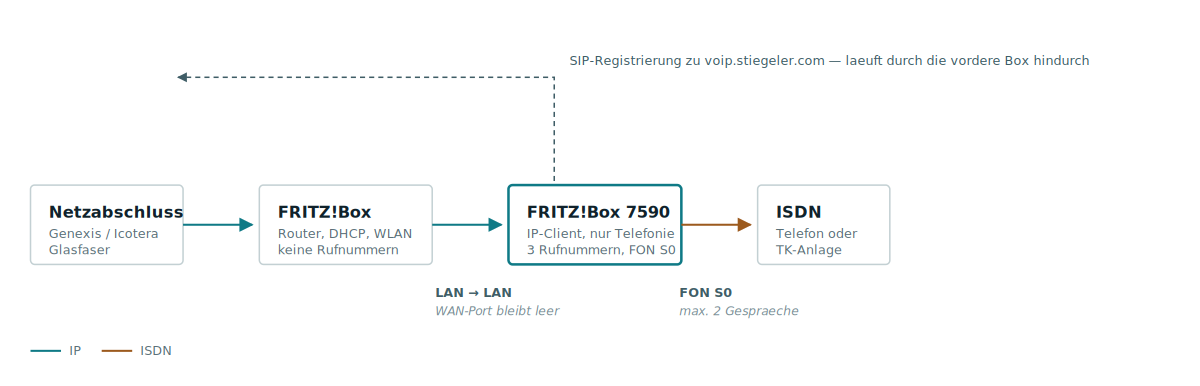
The front unit handles everything network-related: internet connection, DHCP, WLAN. The rear unit is set to IP Client Mode. This means it delegates routing and firewall functions but retains its complete telephone system — DECT base station, analog ports, and the internal S0 bus.
The two units are connected LAN-to-LAN. The WAN port of the rear unit stays unused — if connected, it creates a router cascade with double NAT, and that causes VoIP problems.
Setup in Six Steps
- Factory Reset and Update. Used devices often come with older FRITZ!OS. Update first, configure later — otherwise you'll chase errors that have long since been fixed.
- Switch Operating Mode. Under
Internet → Access Data, select "Other Internet Providers" as the provider, connection "connected to external modem or router", operating mode "Use existing internet connection (IP Client Mode)". - Assign a Fixed Address. Either statically from the front unit's subnet or via DHCP reservation. Without this, you'll only find the unit via the emergency IP after switching.
- Cable the Units. LAN port from the provider's router to LAN port on the 7590. Disable WLAN on the rear unit or run it as a mesh repeater.
- Enter Phone Numbers. Under
Telephone → Own Phone Numbers, create an entry for each number: provider "other provider", registrar and proxy per access details letter, plus username and password. - Set Area Code. In the connection settings, enter country and area code. Without this, local calls without a prefix will fail — a classic issue that only shows up on the first call.
Next, under Telephone → Telephone Devices, set up the ISDN device or system on the FON S0 port and assign the desired phone numbers. The rear unit's DHCP server and firewall disable themselves automatically in IP Client Mode.
Each Phone Number Belongs to Exactly One Unit
This is where most installations get stuck. If the customer received their FRITZ!Box from the provider, the phone numbers are already pre-configured there. However, a SIP account can only be registered on one device at a time. If the same credentials remain in both units, the registrations will overwrite each other, and calls will drop randomly — sometimes working, sometimes not, depending on which unit spoke last.
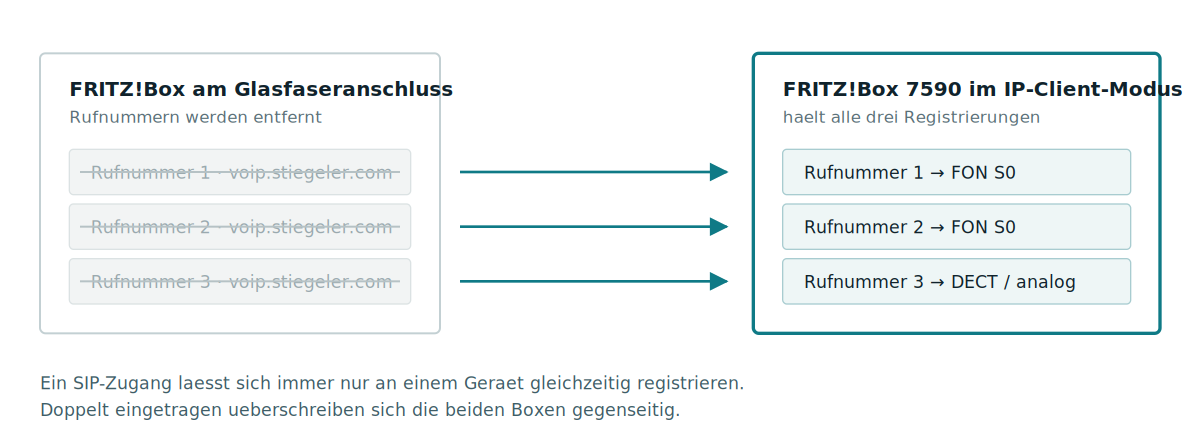
Cleanest approach, since the rear unit handles all telephone functions anyway: delete all numbers from the front, enter all in the rear. It comes with DECT base and analog ports.
If you want to keep numbers on the front for other reasons, you can register the rear unit as an IP phone on the front instead. Then only the provider's router maintains registrations with the carrier, and internal calls between both units work as well. This approach is typically fiddly to set up — the manufacturer no longer provides official instructions for it. Try the simple division first.
Where This Solution Has Limits
Three points determine whether this setup will work. These should be clarified before purchasing the device, not on switch day.
The Internal S0 is a Multidevice Connection
It provides MSNs, not a dial range. A PBX configured for trunk lines with direct dial needs to be switched to multidevice connection mode. This works with most Auerswald and Agfeo models, but not all.
Two B-Channels Maximum
The S0 supports a maximum of two simultaneous calls, regardless of how many phone numbers are configured. Up to eight devices can be connected to the bus — don't forget terminating resistors, and a PBX needs its own power supply; the FRITZ!Box power supply is insufficient.
Fax Remains a Risk
Stiegeler does not support the T.38 fax standard; transmissions run exclusively over G.711. Adding an extra ISDN conversion typically makes this unreliable. Where faxes are business-critical, a fax-to-mail service should be on your list.
What the Provider Says. Stiegeler explicitly notes in its FAQ that an ISDN system should not be operated through a FRITZ!Box's S0 port — it's intended for a single ISDN telephone. For larger setups, the provider recommends Media Gateways from beroNET, which it provides pre-configured.
In practice, the FRITZ!Box approach works fine on many connections. In case of problems, however, you're on your own — and the customer should know this beforehand.
FRITZ!Box or Gateway?
| Situation | Recommendation |
|---|---|
| One to two ISDN phones | Used FRITZ!Box 7590 in IP Client Mode |
| Small PBX, supports MSNs, low call volume | FRITZ!Box 7590, with support caveats |
| Trunk line with direct dial | SIP-ISDN Gateway (beroNET, Patton, AudioCodes) |
| More than two simultaneous calls | Gateway with multiple S0 or S2M ports |
| Fax is business-critical | Fax-to-mail instead of ISDN line |
Checklist for Switch Day
- Registration status green for all phone numbers
- Outgoing call with correct number transmission
- Incoming call on each MSN
- Two parallel calls over S0
- Actively test emergency number 112; don't assume it works
- Voicemail and call forwarding settings verified in customer portal
If outgoing calls work but incoming calls don't, it's almost always the "Keep internet router port forwarding active for internet telephony" option in the connection settings. Depending on how the front unit behaves, enabling it with a 30-second delay sometimes helps, or disabling it. This is your first lever before you start manually forwarding ports.
Conclusion
For one or two ISDN phones behind a fiber connection, a used 7590 is the pragmatic solution: no changes to the provider's router, manageable effort, and the customer keeps their devices. Once a real PBX with direct dial comes into play, a gateway becomes the more honest answer — not because the FRITZ!Box can't do it, but because when problems occur, you need someone who supports that configuration.
All information from an actual project, customer data removed. As of September 2026. Verify model and rate details with the provider before purchase.